Multiecuscan MS package instructions

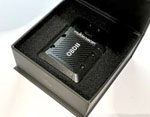
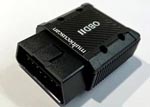
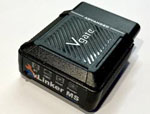
Multiecuscan for iPad/iPhone

1. Install the Multiecuscan app on your iPhone/iPad from App Store.
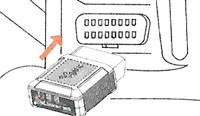
2. Plug the vLinker MS interface into the OBD port of the car.
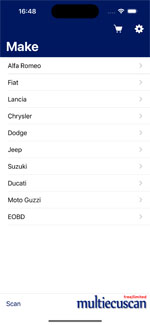
3. Start Multiecuscan app.
4. Select car make, model, version, sysytem and click connect.
The interface will be automatically detected and configured by the app. There is no need to pair the vLinker MS interface in iPhone/iPad bluetooth settings.
In case you have previously used the Multiecuscan app with a different interface - open app settings (from the gear icon on top right) and set interface type to Auto-detect.
The full version of the Multiecuscan app will be automatically activated after first connection to a car. You can check the activation status by pressing the shopping cart icon on top.
The quick user guide for Multiecuscan app is available HERE
Multiecuscan for Windows 11
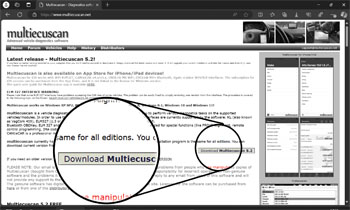
1. Download and install Multiecuscan software from www.multiecuscan.net
Please note that you have to install the latest version of Multiecuscan for Windows 11!
2. Activate the license for Multiecuscan:
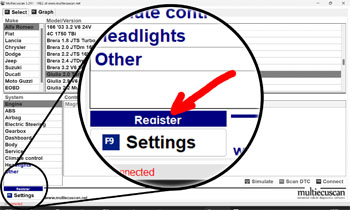
2.1. Open Multiecuscan Register window - press the blue REGISTER button on bottom left
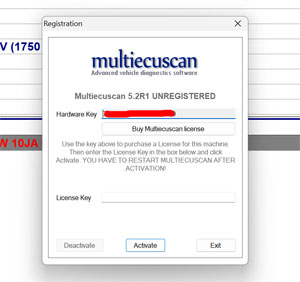
2.2. Copy the "Hardware Key".
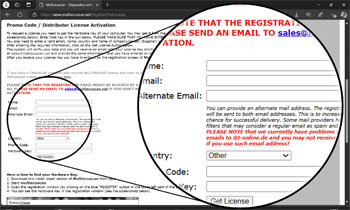
2.3. Go to license activation wesite https://www.multiecuscan.net/RegisterPromo.aspx
2.4. Enter Name, email address, promo code (from the leaflet inside vLinker MS box), Hardware Key (paste the copied key).
2.5. Press Get License.
2.6. You will receive an email with the Multiecuscan license.
2.7. Copy the License Key from the email and paste it in Multiecuscan register window.
2.8. Press Activate button. Multiecuscan will restart and the message in top bar will be "Multiecuscan x.x REGISTERED".
3. Plug the vLinker MS interface into the OBD port of the car.
4. Start Multiecuscan and try to connect to any module in your car. Normally, there is no need to configure the vLinker MS interface in Multiecuscan Settings.
Multiecuscan will automatically detect it during connection!
Now you should be able to connect to the engine and other modules in your car.
Multiecuscan for Windows XP/7/8/10
1. Download and install Multiecuscan software from www.multiecuscan.net
Please note that you have to install the latest version!
2. Activate the license for Multiecuscan:
2.1. Open Multiecuscan Register window - press the blue REGISTER button on bottom left
2.2. Copy the "Hardware Key".
2.3. Go to license activation wesite https://www.multiecuscan.net/RegisterPromo.aspx
2.4. Enter Name, email address, promo code (from the leaflet inside vLinker MS box), Hardware Key (paste the copied key).
2.5. Press Get License.
2.6. You will receive an email with the Multiecuscan license.
2.7. Copy the License Key from the email and paste it in Multiecuscan register window.
2.8. Press Activate button. Multiecuscan will restart and the message in top bar will be "Multiecuscan x.x REGISTERED".
3. Pair the Bluetooth vLinker MS with Windows:
3.1. Plug the vLinker MS interface into the OBD port of the car.
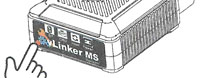
3.2. Press the button on back of vLinker MS to turn on Bluetooth discovery mode. The blue LED will start to blink fast.
3.3. Right-click the blue Bluetooth icon in Windows and select "Add a Bluetooth device". Windows will open "Bluetooth&devices" settings.
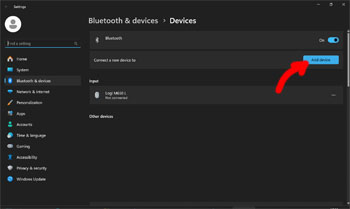
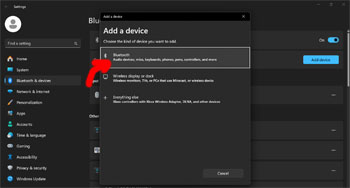
3.4. Press the "Add device" button, then select Bluetooth.
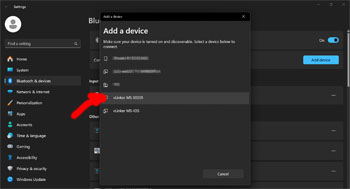
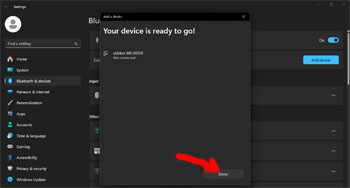
3.5. Wait for Windows to detect 'vLinker MS xxxxx' bluetooth device and select it. Windows should display pin code and you have to confirm it. If it does not display pin code and asks you to enter it then try with code 1234.
* Please note that there will be another device - 'vLinker MS-IOS'. This one does not work in Windows!
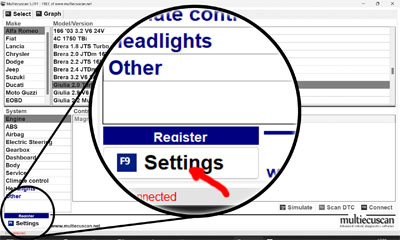
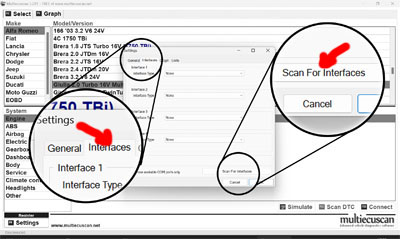
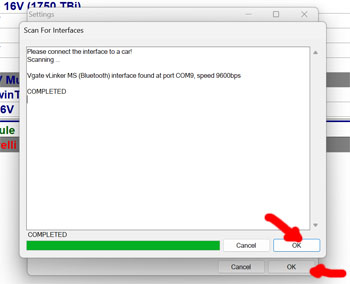
4. Configure the interface in Multiecuscan - Start Multiecuscan, go to Settings, then Interfaces and then click the “Scan for interfaces” button on bottom and wait for the search to complete. It should identify your interface. Press OK to close and save settings.
Now you should be able to connect to the engine and other modules in your car.
|
|
|